


Create the budget
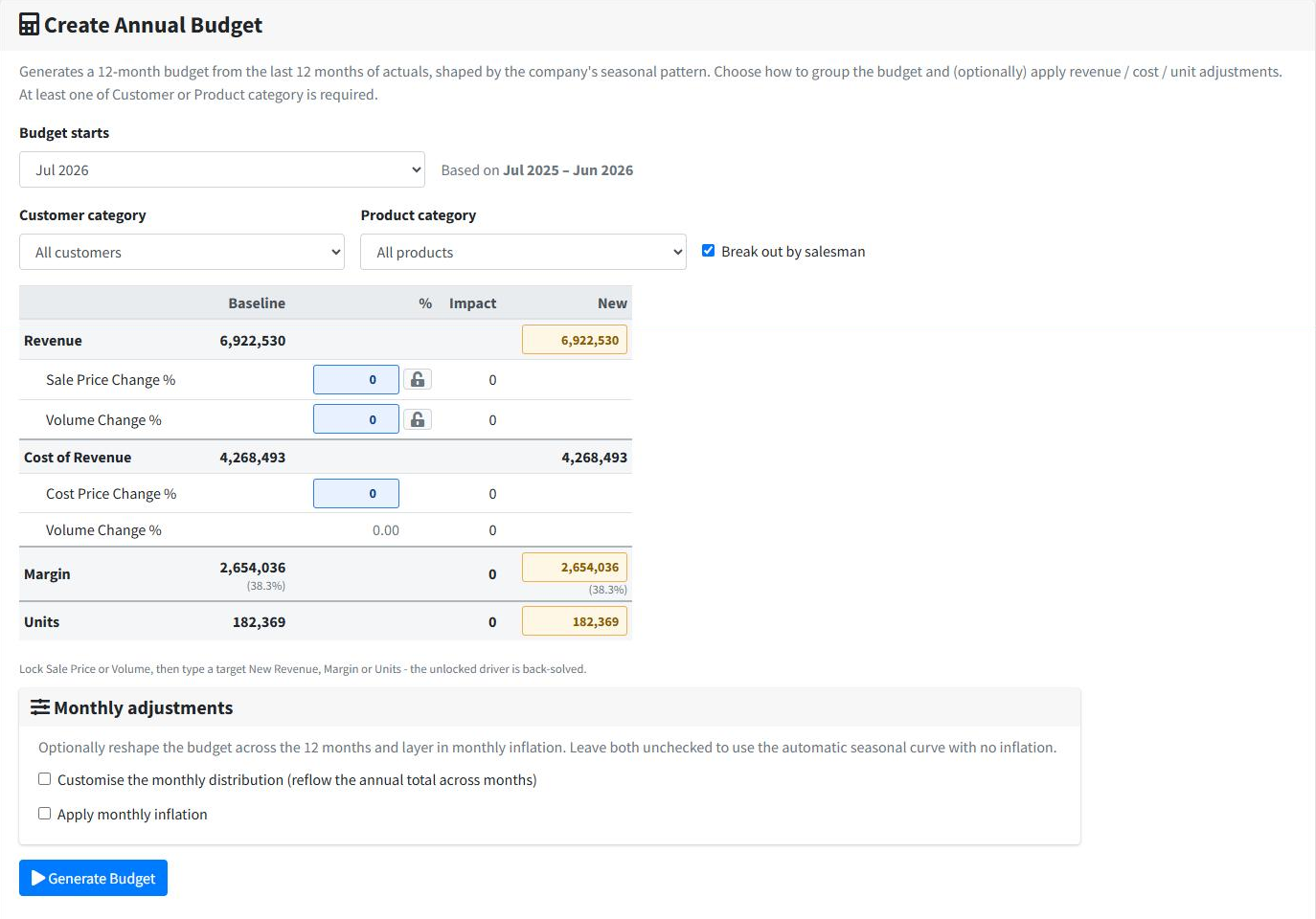 Create Annual Budget: year, grouping, salesman split, the what-if grid and monthly adjustments.
-
Confirm the year
Budget starts is pre-set to the correct financial year, so usually you can leave it. Underneath, a Based on note names the exact 12 months of actuals the budget will be built from, so the basis is never a guess.
-
Choose how to group it
Pick a Customer Category, a Product Category, or both. At least one is required. Besides your own category dimensions, each side offers:
- All customers / All products — do not split that side at all.
- Top customers (RFM 80/20) + Sundry — budget the significant customers individually and pool the tail.
- Top products (80/20) + Sundry — the same idea on the product side.
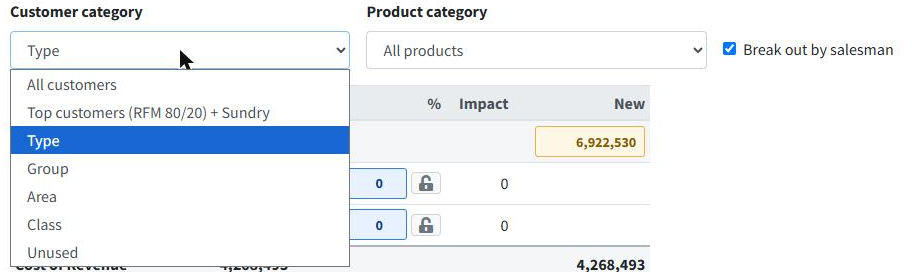 The grouping choices on the customer side.
Pick whichever matches how your team actually plans.
If you group by a category you maintain yourself
Category columns are normally refilled from your accounting system on every import. If you have built a grouping by hand specifically to budget against — a set of territories, say, that your accounts package does not hold — open the Categories page first and set that column's Maintained by to Me, here. Otherwise the next overnight import rewrites the groups, and the budget you built on them is suddenly split a different way.
-
Decide on the salesman split
Leave Break out by salesman ticked and the budget is divided across reps automatically. This is what later lets the Budget Report show the same plan by rep.
-
Apply what-if adjustments (optional)
A grid shows Baseline → Impact → New across Revenue, Cost, Margin and Units, recalculating live as you type. Three drivers:
- Sale Price Change %
- Volume Change %
- Cost Price Change %
Leave them at zero for a like-for-like budget.
-
Or work backwards from a target
Instead of typing drivers, tick Hold sale price or Hold volume, then type the New Revenue, Margin or Units you want. The unlocked driver is back-solved to reach it. Useful when you have been given a number rather than a percentage.
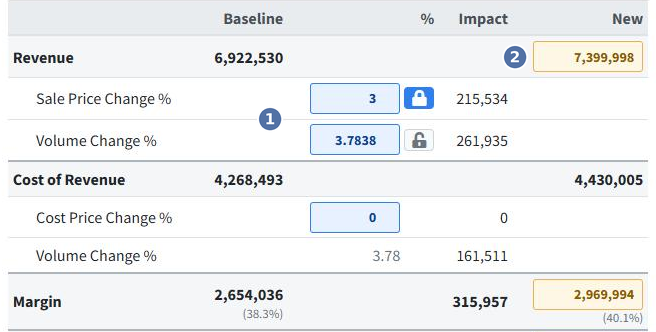 1 What-if drivers typed as percentages · 2 A target typed into New, with sale price held so volume is back-solved.
 -
Generate it as a draft instead (optional)
Tick Generate as draft and give it a name — "FY27 with 5% uplift", "Post-restructure" — and the whole year is written to a brand-new scenario. Nothing existing is touched, so there is no overwrite warning and the budget the business is working to carries on unchanged. Build as many as you like, then compare them and adopt the winner.
-
Generate
Click Generate Budget. The confirmation reports how many rows were created, the year, and the exact baseline window — for example "Created 4,812 budget rows for the year starting Jul 2026 (baseline Jul 2025 - Jun 2026)." A Budget preview grid of sales rep by month appears so you can sanity-check the spread, with Edit Budget alongside it.
Generating replaces the whole year
If a budget already exists for that year you are warned first — "This will completely overwrite the existing budget." Any hand edits made in Edit Budget are lost, so regenerate before you fine-tune, not after.
This is exactly what Generate as draft avoids: a draft is written to its own scenario, so regenerating never disturbs the budget in use. If you are experimenting on a year that is already live, work in a draft.