


9. Personal or company view
Several widgets — the Business Movement set, My Budget Progress and the year-on-year widgets among them — carry a Personal / Company switch in their header. Personal shows your own sales rep's customers (and your territory group, if you are in one); Company shows the whole business.
Link your login to your sales rep
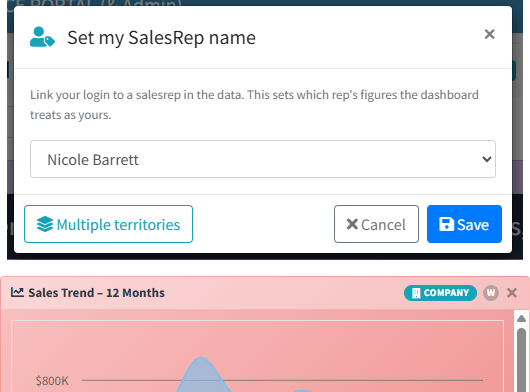
Open the actions menu (⋮) and choose Set my SalesRep name.
Pick your name
Choose yourself from the list of sales reps held in your accounting system and save. Your rep's name then appears beside your email in the top bar.
Flip the switch
Use the Personal / Company toggle on any widget that has one. Without a linked rep, those widgets show company figures and the switch does not appear.
On the Business Movement widgets, the figures beside each customer are that customer's whole-company totals. Where an account is shared between reps, the Personal list is yours but the numbers include your colleague's sales too.