


5. Period options
The … button beside Period Length opens Period options, with two settings.
Show complete periods only
Leaves out the period still in progress, so a report never ends on a half-finished month, week or quarter. Last 6 Months becomes the last six finished months, and the title says so — “for the Last Complete 6 Months”.
- It is saved against your login, so it stays on — on any device — until you turn it off.
- It also governs the period-based dashboard widgets, so the dashboard and this page never disagree.
- It is not offered on the year-to-date lengths, which by definition run up to today.
Specific dates
Set a From and a To date and click Apply to report on an exact window. While it is active the Period Length drop-down is switched off and the dates show as a tag beside the button; click the × on the tag, or Clear dates in the dialog, to go back.
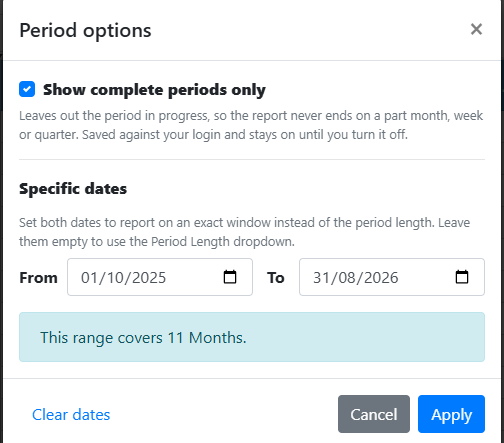
Several years of Days would produce hundreds of columns. If a range is too large for the Period Type, the dialog says how many columns it would create and asks for a longer period type or a shorter range before it will apply.
A specific date window applies only to the report in front of you — but it is stored with a favourite, so reopening that favourite restores the same window.