


8. Categories: allocating groups
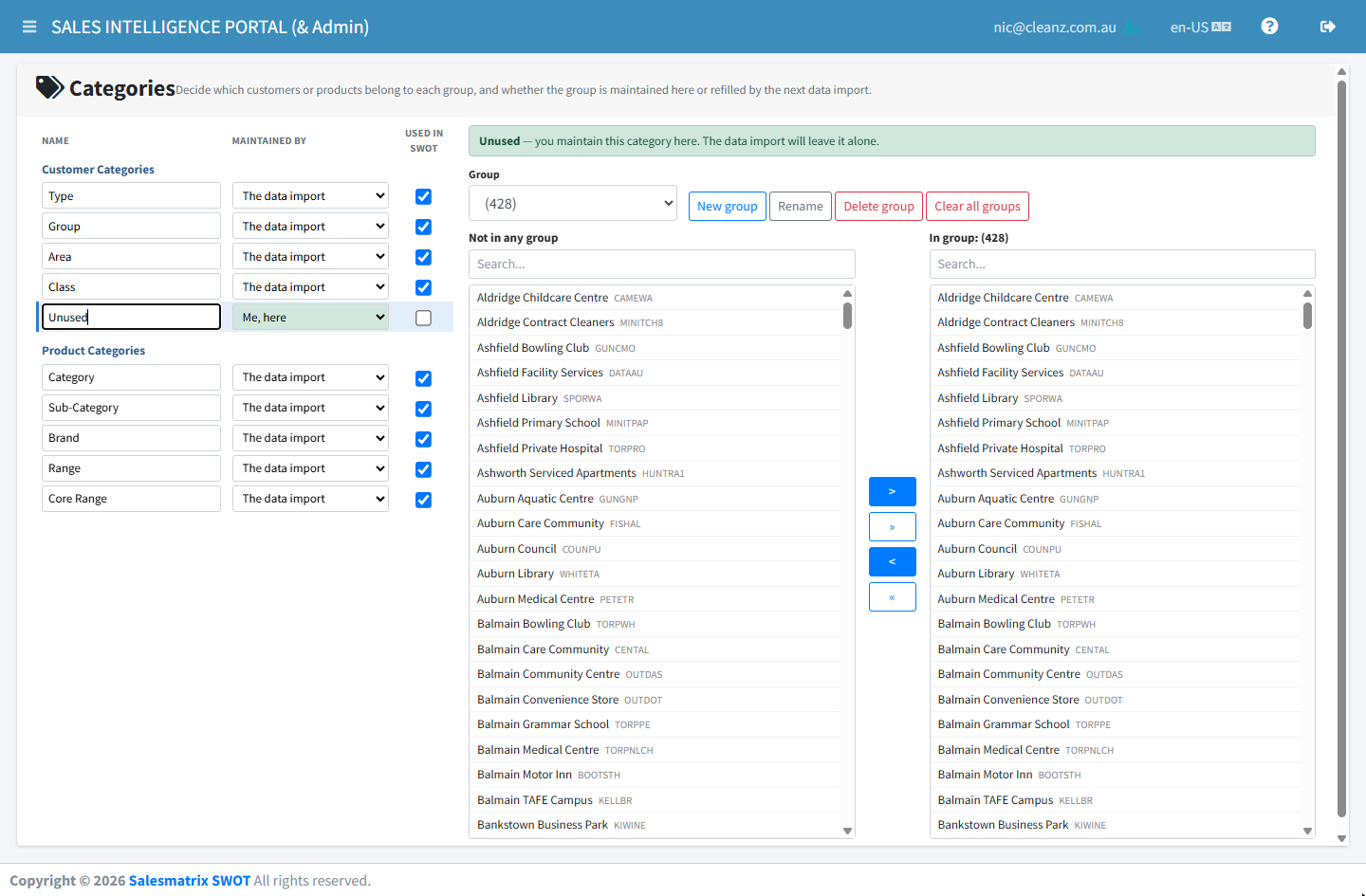
Select a column
Pick a column set to Me, here. Columns owned by the import are read-only, so an edit cannot quietly vanish overnight.
Choose or create a group
Choose a group from the drop-down, or use New group. Rename and Delete manage existing ones.
Move records across
The left list is everything not yet allocated; the right list is the selected group. Move records between them with the arrow buttons, using each list's search box to find them.
Deleting a group is safe
Its members return to unallocated; no customer or product is deleted.
Clear all reaches further than the list
Clear all empties the whole column, including records too old to be shown in the list.